
Looking to Get Delta Executor Running on Your PC?
We’ve put together a complete walkthrough covering everything you need — from downloading and installing Delta to actually running Roblox scripts on both Windows and Mac. The good news is that developers recently dropped a native Mac version, so Mac users finally have a dedicated option available through the download link provided.
The Roblox mobile executor space is crowded — tools like Fluxusz, Arceus X, Krnl, Skibx, CodeX, and Hydrogen all have their followings — but none of them work natively on a desktop without jumping through emulator hoops.
That’s where Delta steps in. After being away for a while, Delta came back stronger with official Windows and Mac releases. The PC version had existed before but went offline due to a few complications along the way. Now it’s back, and better supported than ever.
Because the desktop experience works differently from mobile, we’ve broken things into separate guides so nothing gets confusing. This particular post focuses entirely on the Windows side of things.
Beyond sharing the download link, we’ll take you through the full installation process and show you exactly how to get Delta Executor up and running on your PC so you can execute Roblox scripts without any guesswork.
Let’s get into it.
Running Delta Executor on PC via an Android Emulator
For Android emulation on Windows, we typically work with two solid options — MuMuPlayer and LDPlayer. For this guide, we’re going with MuMuPlayer to walk you through running the Delta exploit on Windows.
Follow the steps below to get started:
Your first move is grabbing MuMuPlayer. If it’s not already on your machine, hit the button below to download it now.
- Once downloaded, launch it and click on the My Games option on the left side.
- After that, visit Delta’s official site — www.thedeltaexecutor.com.
- After visiting the site, download its latest version.
- You can download the latest APK file by clicking on the button below.
- Once downloaded, launch the MumuPlayer Emulator.
- Now, click on the three-dot icon located at the top right corner of the screen.
- When you do so, you will see numerous options.
- Now, click on the More Tools option and then select APK Installation.
- Now, select the latest Delta APK file.
- When you do so, the installation process will begin.
- Once installed, launch the executor and log in to Roblox.
- After that, search for the game you wish to exploit and run the script.
- That’s it.
That’s all you need to know about how to download and use Delta Executor on a PC.
Downloading Delta Executor on PC Without Emulator
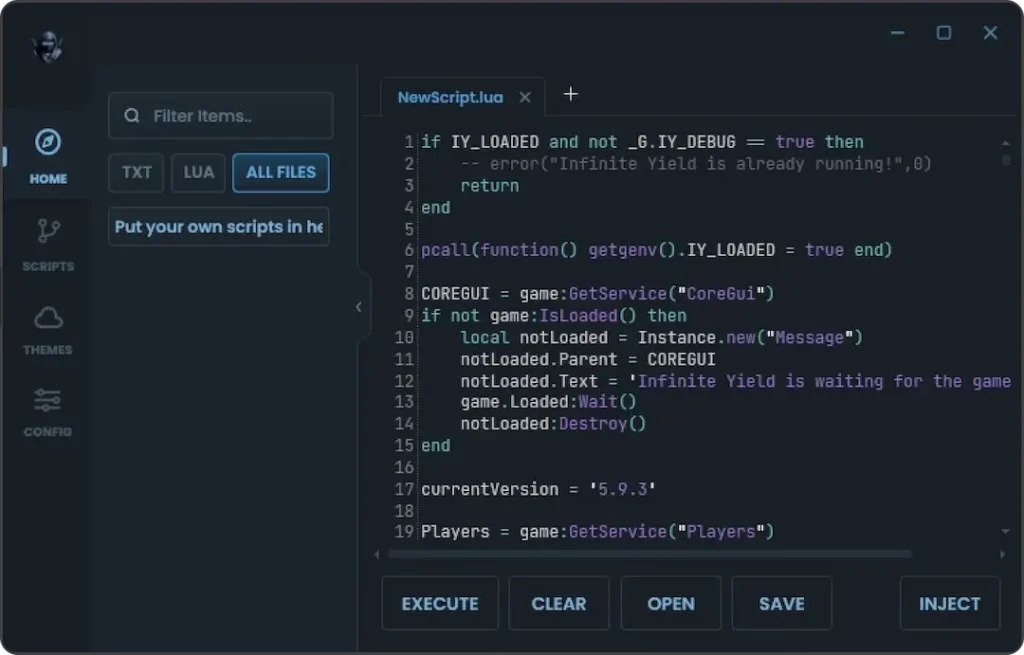
Before I explain the process of downloading and using Delta Executor on Windows, let me tell you that you can’t use it if you have an Antivirus installed on your PC.
To use Delta Executor smoothly, you need to disable your Antivirus.
To do so, you need to open up the Windows search option and type ‘Windows Security’ and then click on it.
After that, you need to click on the ‘Virus & threat protection‘ option.

Now, click on the ‘Manage Settings’ option.
Once you’re in the settings menu, you’ll find several options listed — simply look for ‘Real-time protection’ and turn it off.
Clicking the Download Now button will immediately start downloading the Delta Executor setup file to your computer.
When the download finishes, head over to your Downloads folder, find the Delta Executor.exe file, and double-click it to kick off the installation.
During this step, don’t be alarmed if a red warning window pops up mentioning a ‘Malicious file’ — this is a common false positive.
Just hit ‘More info’ followed by ‘Run Anyway’ to move past it and continue with the installation.
Give it a moment to finish up. Once everything’s done, the Delta Executor interface will launch automatically on your screen.
One of the standout features of Delta Executor is its built-in Script Hub, which is packed with a wide variety of ready-to-use scripts.
Another reason it’s become a go-to tool for Roblox exploiters worldwide is its impressive multilingual support — covering more than 10 languages.
Next, open the Microsoft Store, download and install Roblox, then log into your account and find the game you want to play.
Hit the Play button to launch the game, and once you’re in, bring up the Delta Executor GUI and press the Inject button.
A small pop-up will appear confirming ‘Successfully attached to Roblox’ — that means you’re all set.
From there, paste your desired game script into the executor window and click the ‘Execute’ button to run it.
The script will load instantly, giving you access to whichever in-game feature or mod you wanted to activate.
⚠️ Important Note: The PC version of Delta Executor is currently unavailable. If you want to use it on Windows, your best workaround is running it through an Android emulator.